Tencent Cloud Codebuddy AI
Tencent Cloud Codebuddy AI is an intelligent programming tool based on Tencent’s Hunyuan Code Large Model, aiming to comprehensively improve developers’ coding efficiency and code quality through advanced artificial intelligence technology. There are two ways to use:Key Features
Intelligent Code Completion
Provides real-time code suggestions to accelerate the development process.
Error Diagnosis
Automatically identifies and locates potential issues in the code, improving code robustness.
Technical Q&A
Offers instant technical support and answers to programming questions.
Code Optimization
Analyzes code and provides suggestions for performance improvement.
High-Quality Code Generation
Assists developers in generating standardized and efficient code.
Security Vulnerability Detection
Automatically identifies potential security vulnerabilities and suggests fixes in the code.
- Significantly improves development efficiency and reduces repetitive work.
- Enhances code quality and reduces error rates.
- Helps developers solve technical problems and learn new knowledge.
1. For CLI
1.1 Installation
Option A: NPMRequires Node.js 18.0+
1.2 Add Permanent Shell Configuration
- For zsh users:
~/.zshrc - For bash users:
~/.bashrc
1.3 Create ~/.codebuddy/models.json if it doesn’t exist.
For more configurations, please refer to CodeBuddy Document
2. For IDE
2.1 Installation
Download Link: https://www.codebuddy.ai/home2.2 Add .codebuddy/models.json in your workspace
Workspace tree:
<your-workspace>
.codebuddy
models.json
Remember to add
.codebuddy to your .gitignore file to protect your API key.Why Replace Environment Variables:
Environment variable substitution is not a native JSON feature. It requires the application to actively implement parsing logic. CodeBuddy IDE does not implement this parsing when reading models.json, so it directly treats $ as your API Key and sends it out, resulting in authentication failure, which ultimately manifests as “session expired”. The IDE will keep prompting that the session has expired.
Configuration Priority:
PROJECT_LEVEL > USER_LEVEL > BUILT_INmodels.json is a configuration file used to customize the model list and control the display of the model dropdown. This configuration supports two levels.
Configuration merge priority from high to low:
- Project-level:
<your-workspace>/.codebuddy/models.jsonspecific to the project, with the highest priority, overwriting user-level and built-in default configurations. - User-level:
~/.codebuddy/models.jsonglobal configuration for all projects, with secondary priority. - Built-in: default configuration with the lowest priority.
availableModels field: Project-level completely overwrites user-level, without merging.
2.3 IDE Mode Comparision
3. Start Codebuddy
3.1 With CLI
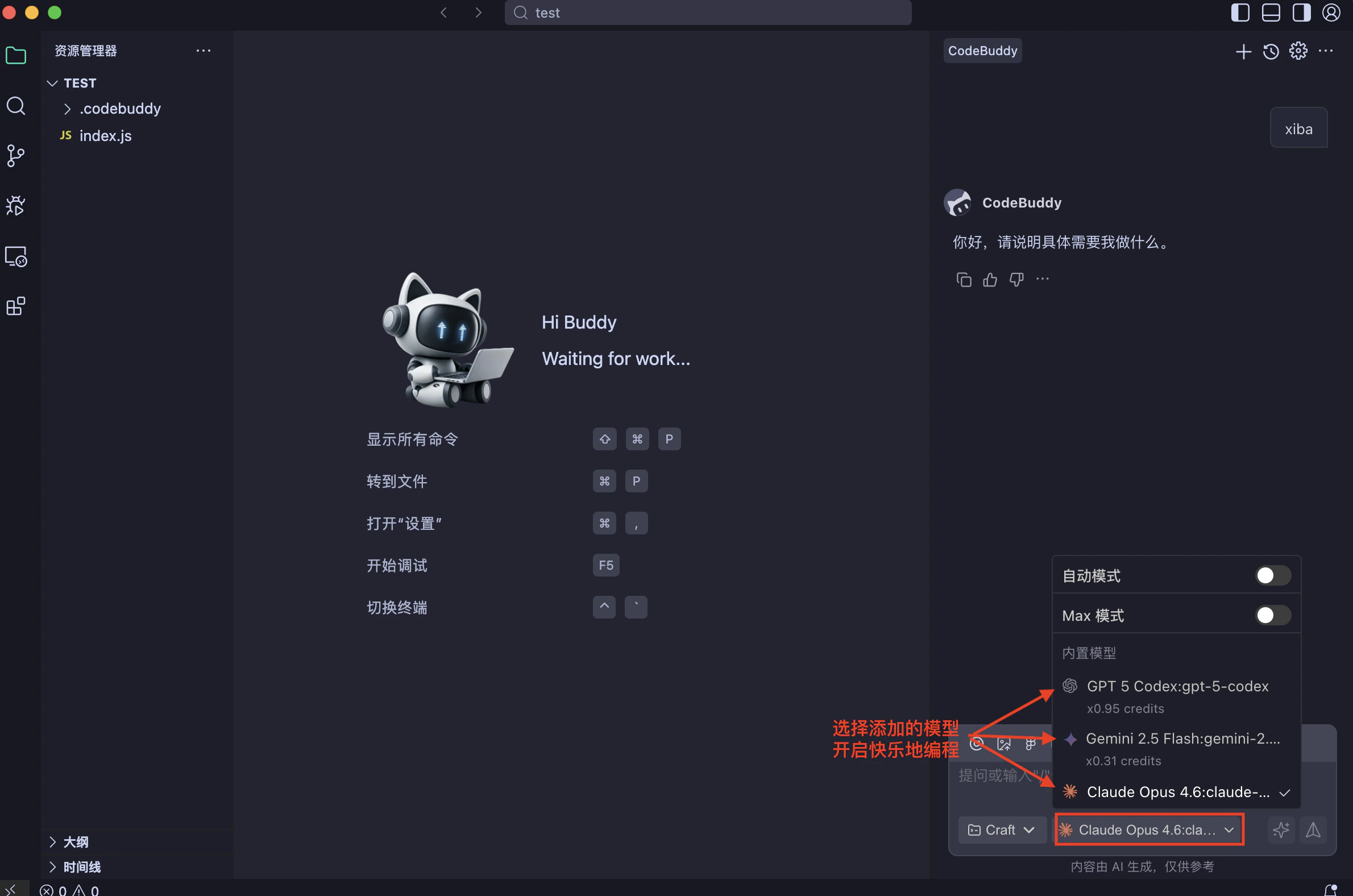
3.2 With IDE